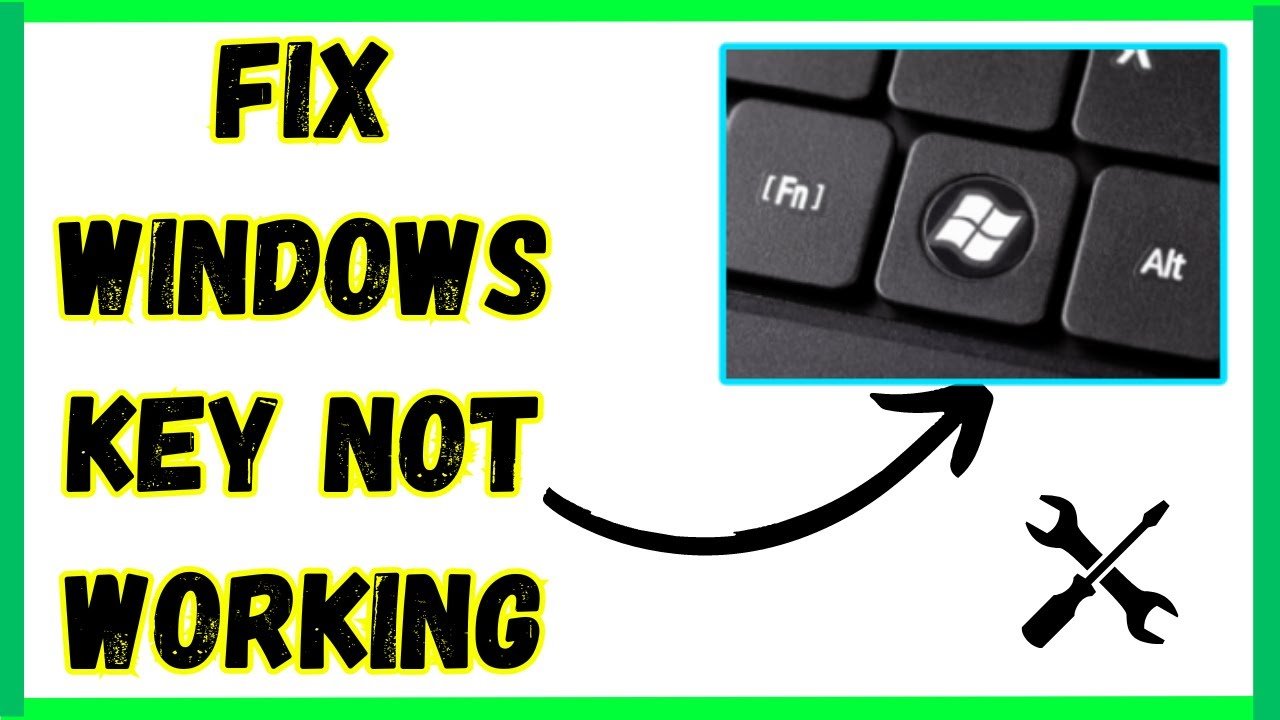
The Windows key is one of the most essential tools on your keyboard, providing quick access to the Start menu, search functionality, and countless keyboard shortcuts that streamline your workflow. When this critical key suddenly stops responding, it can disrupt your entire computing experience and leave you frustrated. Whether you’re a casual user or a productivity power user who relies on Windows key combinations, discovering that your Windows key not working can feel like losing a limb.
The good news is that this common issue usually has straightforward solutions that don’t require technical expertise or expensive repairs. In this comprehensive guide, we’ll walk you through the most effective fixes that have helped thousands of users restore their Windows key functionality instantly.
Understanding Why Your Windows Key Stops Working
Before diving into solutions, it’s helpful to understand what might cause this problem. The Windows key can fail for several reasons, ranging from simple software glitches to hardware complications. Sometimes Windows updates inadvertently disable certain features, while other times, gaming software or specific applications can lock the key to prevent accidental interruptions during gameplay. Keyboard settings, registry modifications, or even accumulated dust can also be culprits.
Identifying the root cause isn’t always necessary since many fixes address multiple potential issues simultaneously. However, knowing the common triggers helps you prevent future occurrences and choose the most appropriate solution for your situation.
ALSO READ; Windows Key Not Working? Powerful Fixes That Work Instantly
Quick Check: Is Your Windows Key Actually Broken?
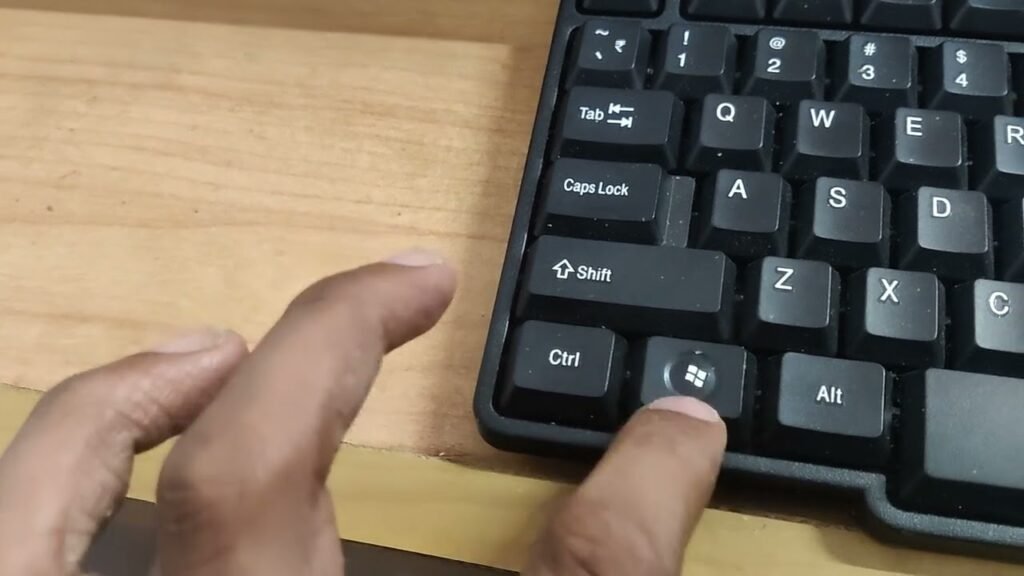
Windows Key Not Working attempting any fixes, perform a simple verification. Try pressing the Windows key in combination with other keys such as Windows + E (File Explorer), Windows + I (Settings), or Windows + L (Lock screen). If these shortcuts work but pressing the Windows key alone doesn’t open the Start menu, you’re dealing with a specific configuration issue rather than a complete key failure.
Also, test your keyboard on another computer if possible. If the Windows key works elsewhere, the problem lies within your system settings rather than the keyboard hardware itself.
Fix 1: Restart Your Computer
This might seem obvious, but restarting your computer resolves temporary glitches more often than you’d expect. When your Windows key not working, a fresh system boot clears memory caches, resets keyboard drivers, and terminates any processes that might be interfering with normal key functionality.
Simply click the Start button using your mouse, select the power icon, and choose Restart. After your computer reboots, test the Windows key again before proceeding to more complex solutions.
Fix 2: Disable Gaming Mode or Game Bar
Windows 10 and 11 include a Gaming Mode feature designed to optimize system resources during gameplay. This feature sometimes disables the Windows key to prevent accidental interruptions while you’re gaming. If you’ve recently played games or enabled this feature, it might still be active.
To disable it, open Settings by clicking the Start menu with your mouse, then navigate to Gaming. Look for Game Mode and toggle it off. Additionally, check the Game Bar settings and ensure that keyboard shortcuts aren’t conflicting with the Windows key. Many users have reported that their Windows key not working issue resolved immediately after disabling these gaming features.
Fix 3: Update Your Keyboard Drivers
Outdated or corrupted keyboard drivers frequently cause key malfunctions. Windows manages keyboard input through specialized software drivers, and when these become incompatible with system updates, specific keys can stop responding.
Windows Key Not Working update your drivers, right-click the Start button with your mouse and select Device Manager. Expand the Keyboards section, right-click on your keyboard device, and select Update Driver. Choose the option to search automatically for updated driver software. Windows will scan for the latest drivers and install them if available.
Alternatively, you can uninstall the keyboard driver entirely by selecting Uninstall Device, then restart your computer. Windows will automatically reinstall the default driver upon reboot, which often resolves persistent issues.
Fix 4: Check for Filter Keys Activation
Filter Keys is a Windows accessibility feature that modifies keyboard behavior to assist users with motor disabilities. When activated, it can make certain keys, including the Windows key, appear unresponsive or require extended presses to register.
To check this setting, open Settings and navigate to Accessibility, then Keyboard. Ensure that Filter Keys is turned off. You can also quickly access this by right-clicking the Start menu, selecting Settings, and using the search bar to find “Filter Keys.” Disabling this feature has resolved the Windows key not working problem for many users who accidentally enabled it.
Fix 5: Run the Windows Troubleshooter
Windows includes built-in troubleshooting tools designed to automatically detect and fix common problems. The keyboard troubleshooter specifically examines input device settings and can identify configuration errors causing your Windows key malfunction.
Access this tool by opening Settings, selecting System, then Troubleshoot, and finally Other Troubleshooters. Locate the Keyboard troubleshooter and click Run. The system will perform diagnostic tests and apply recommended fixes automatically. This process takes just a few minutes and requires no technical knowledge.
Fix 6: Modify the Registry to Re-enable the Windows Key
Some applications or system modifications can disable the Windows key through Windows Registry settings. Editing the registry might sound intimidating, but following these precise instructions makes it safe and straightforward.
Press Windows + R using any working keyboard shortcut to open the Run dialog. Type “regedit” and press Enter. Navigate to the following path: HKEY_LOCAL_MACHINE\SYSTEM\CurrentControlSet\Control\Keyboard Layout. Look for a value named “Scancode Map.” If this entry exists, it might be disabling your Windows key. Right-click on it and select Delete, then restart your computer.
Windows Key Not Working create a registry backup before making changes. In the Registry Editor, click File and then Export to save your current settings. This precaution allows you to restore the registry if anything goes wrong.
Fix 7: Check for Third-Party Software Conflicts
Various applications, particularly gaming software, system optimizers, and keyboard customization tools, can interfere with Windows key functionality. Programs like gaming keyboards’ companion software often include features that disable the Windows key to prevent accidental exits during gameplay.
Windows Key Not Working recently installed programs and temporarily disable or uninstall any software that modifies keyboard behavior. Common culprits include gaming peripheral software from Razer, Logitech, or Corsair, as well as productivity tools that remap keyboard shortcuts. After identifying the conflicting application, check its settings for options to re-enable the Windows key.
Fix 8: Perform a System Restore
If your Windows key not working issue began after a recent Windows update, software installation, or system change, System Restore can revert your computer to a previous state when everything functioned correctly.
To access System Restore, type “Create a restore point” in the Windows search bar and select it. In the System Properties window, click System Restore, then follow the wizard to choose a restore point dated before your problem began. This process doesn’t affect your personal files but will uninstall recently added programs and reverse system changes.
Fix 9: Clean Your Keyboard Hardware
Physical debris beneath the Windows key can prevent proper contact with the keyboard’s circuit board. Dust, crumbs, and sticky residue accumulate over time, especially in frequently used keys.
Windows Key Not Working mechanical keyboards, carefully remove the keycap using a keycap puller or gentle upward pressure. Clean underneath with compressed air and isopropyl alcohol on a cotton swab. For laptop keyboards, turn the device upside down and gently tap to dislodge debris, then use compressed air at an angle to blow out particles.
Fix 10: Test with an External Keyboard
If you’re using a laptop and experiencing Windows key not working issues, connecting an external USB keyboard helps determine whether the problem is hardware or software related. If the external keyboard’s Windows key functions properly, your laptop keyboard likely has a hardware failure requiring professional repair.
For desktop users with PS/2 keyboards, try switching to a USB keyboard or vice versa. Different connection types sometimes behave differently with Windows key recognition.
Fix 11: Check Windows Update Settings
Occasionally, pending Windows updates or update failures can cause keyboard irregularities. Ensuring your system is fully updated can resolve compatibility issues affecting the Windows key.
Windows Key Not Working Settings, select Windows Update, and click Check for Updates. Install any available updates and restart your computer. If updates fail to install, use the Windows Update Troubleshooter found in the Troubleshoot section of Settings to resolve update-related problems.
Fix 12: Reset Windows (Last Resort)
If none of the previous solutions work and your Windows key not working problem persists, resetting Windows to its default state might be necessary. This option reinstalls Windows while giving you the choice to keep your personal files.
Windows Key Not Working Settings, navigate to System, then Recovery. Under Reset this PC, click Reset PC and choose whether to keep your files or remove everything. Follow the on-screen instructions to complete the process. This comprehensive solution addresses deep-rooted software conflicts that simple fixes cannot resolve.
Preventing Future Windows Key Issues
Once you’ve restored your Windows key functionality, taking preventive measures helps avoid recurrence. Regularly clean your keyboard, keep your drivers updated, and be cautious when installing software that modifies system behavior. Create regular system restore points before major changes, and maintain awareness of keyboard settings when using gaming features.
Consider documenting which solution worked for you. If the problem returns, you’ll know exactly which fix to apply immediately.
When to Seek Professional Help
If you’ve exhausted all software solutions and tested with multiple keyboards without success, you may be facing a deeper system issue requiring professional diagnosis. Motherboard problems, BIOS corruption, or specialized malware can occasionally interfere with keyboard functionality in ways that standard troubleshooting cannot address.
Windows Key Not Working seeking professional repair services, make one final attempt by creating a Windows installation USB and booting from it to test keyboard functionality in the Windows installation environment. If the Windows key works there but not in your regular system, a clean Windows installation might be your most effective solution.
Conclusion
Dealing with your Windows key not working is undoubtedly frustrating, but as this guide demonstrates, the issue is usually fixable through systematic troubleshooting. Most users find success with simple solutions like disabling Gaming Mode, updating drivers, or checking accessibility settings. More persistent problems may require registry edits or system restoration, but even these advanced fixes are accessible with careful attention to instructions.
Windows Key Not Working key is approaching the problem methodically, starting with the simplest solutions and progressing to more comprehensive fixes only when necessary. With the powerful fixes outlined in this article, you should be able to restore your Windows key functionality and return to your normal computing experience quickly and confidently.
About the Author